
User Guide
Animation Control Hub is an advanced Unity tool that transforms how you work with animations both in editor and at runtime.
📦 Installation
Section titled “📦 Installation”- Download the package from the Unity Asset Store.
- Unity will detect scripts automatically and it will be ready to use.
✅ Installation check
Section titled “✅ Installation check”After installation, verify that a GameObject with an Animator or Animation component shows the Open Anim Control Hub button in the Inspector. If it does, you are ready to start.
🚶➡️ First steps
Section titled “🚶➡️ First steps”Open the window
Section titled “Open the window”There are several ways to open Animation Control Hub:
Tools -> Latin Tools -> Animation Control Hub -> Open Animation Hub Window- Select a GameObject with an Animator or Animation component.
- In the Inspector, click Open Anim Control Hub.
- The window will open automatically configured for that object.
- Open the window from the menu.
- Drag a GameObject with animations into the Target Object field.
- Or select a GameObject and enable Auto Assign from Selection.
Initial setup
Section titled “Initial setup”When the window opens, you will see the interface split into sections:
| Section | Function |
|---|---|
| Top Toolbar | Search, filters, and settings |
| Target Section | Target object selection |
| Animations List | Available animation clips |
| Playback Controls | Playback management |
| Timeline | Interactive time control |
| Status Bar | Status and keyboard shortcuts |
🎞️ User interface
Section titled “🎞️ User interface”Top Toolbar
Section titled “Top Toolbar”
The top bar gathers the main controls.
Runtime Indicator
- ▶ RUNTIME appears when Unity is in Play Mode.
- It indicates the tool is running in runtime.
Search Field
- Search filters clips by name.
- Supports partial and case-insensitive search.
- ✕ button to clear quickly.
Filter System
- Sort Mode: Name, Length (Asc/Desc), Favorites.
- ★ button to show favorites only.
- Filters persist between sessions.
Action Buttons
- 🔄 Refresh: reloads list and resets pose.
- 🗑 Clear: clears current target object.
- ⚙️ Settings: opens settings menu.
Animations List
Section titled “Animations List”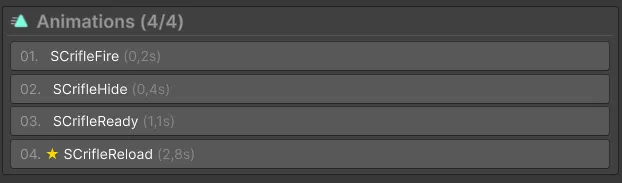
Each clip displays:
- Index number (quick navigation).
- ★ Favorite status.
- Clip name.
- Total duration in seconds.
- Progress bar (during playback only).
Interactions:
- Click: selects clip and plays it if Auto Play is enabled.
- Right-click: contextual menu with extra actions.
- Tooltip: detailed info on hover.
Playback Controls
Section titled “Playback Controls”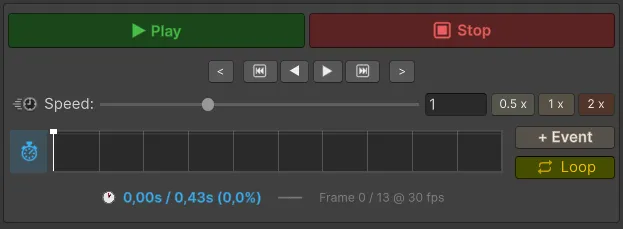
Main buttons:
- ▶️ Play: starts selected clip playback.
- ⏸️ Pause: pauses while keeping the current pose.
- ⏹️ Stop: stops playback and resets pose (optional).
Speed control:
- Speed Slider: range from 0.1x to 3.0x.
- Reset Speed: returns to 1.0x.
Playback options:
- 🔄 Loop: toggles loop mode.
- Auto Play (in Settings): automatically plays on clip selection.
Interactive Timeline
Section titled “Interactive Timeline”
Features:
- Manual scrubbing by dragging the timeline.
- Current/total time markers.
- Animation events as green diamonds.
- Visual progress bar.
Event interaction:
- View events directly in timeline.
- Click to inspect and edit.
- Drag to change temporal position.
Details Panel
Section titled “Details Panel”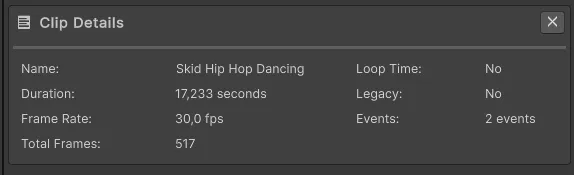
When an animation is selected, you can see:
- Clip name.
- Exact duration.
- Frame rate (FPS).
- Total frame count.
- Loop Time.
- Legacy/Modern status.
- Number of animation events.
🔥 Advanced features
Section titled “🔥 Advanced features”Favorites system
Section titled “Favorites system”Mark favorites:
- Select an animation.
- Right-click -> Add to Favorites.
- Or use the star in the contextual menu.
Favorites management:
- Displayed with a golden ★ icon.
- Use the ★ filter to show favorites only.
- Persist between Unity sessions.
Component Setup
Section titled “Component Setup”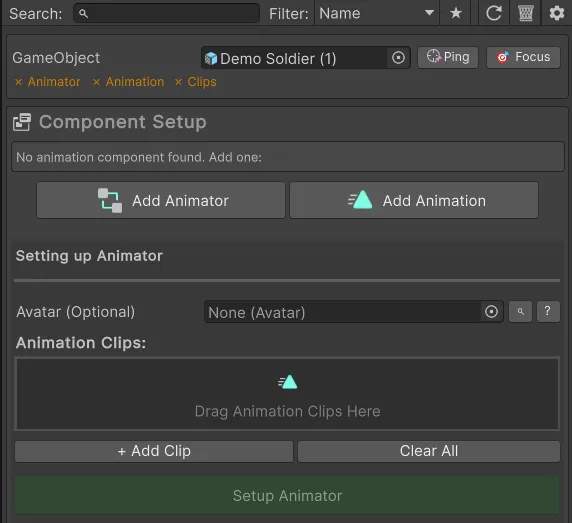
Animator Auto-Setup
- If the GameObject has no animation component, the tool offers to add one.
- Add Animator creates an initial setup with an Animator Controller.
- Add Animation configures a legacy Animation component.
Avatar Setup
- For humanoid animators, assign an Avatar.
- Auto-detect tries to find the correct Avatar.
- You can also assign it manually from project assets.
Clip Management
- Drag and drop clips from Project.
- Add Clips button to add them manually.
- Remove to delete unwanted clips.
- Automatic compatibility validation (Legacy vs Modern).
Animation Events
Section titled “Animation Events”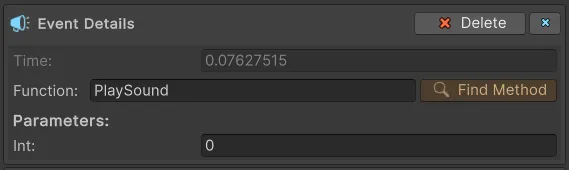
Visualization
- Events appear as green markers in timeline.
- Detailed info on hover.
- Fully selectable and editable.
Editing
- Select an event in the timeline.
- The details panel shows event properties.
- Use Function Selector to choose available functions.
- Adjust parameters: string, float, int, or object.
Function Selector
Section titled “Function Selector”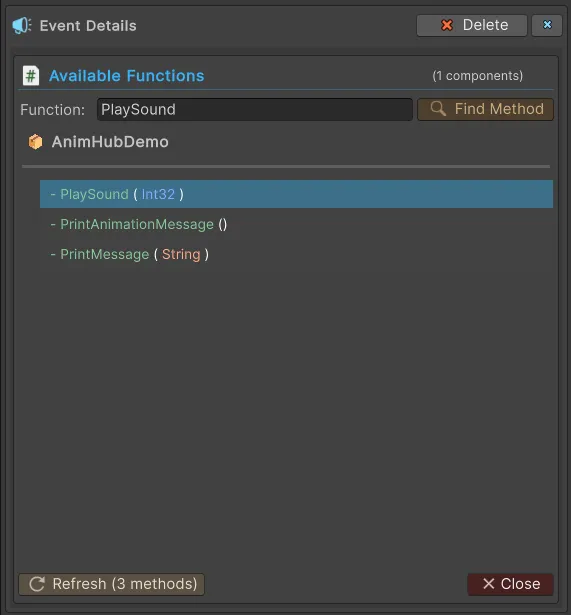
- Auto-detect of public methods in MonoBehaviours.
- Search by function name.
- Validation of existence and accessibility.
Keyboard shortcuts
Section titled “Keyboard shortcuts”
Quick navigation:
Space: Play/Pause.←/→: Previous/Next frame.↑/↓: Previous/Next clip.
⚙️ Settings
Section titled “⚙️ Settings”Open settings from ⚙️ Settings in the toolbar.
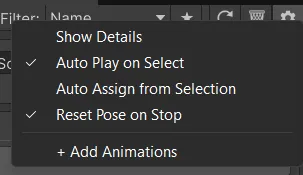
Playback options:
- Show Details: show/hide details panel.
- Auto Play on Select: play clip on selection.
- Auto Assign from Selection: auto-assign GameObject.
- Reset Pose on Stop: reset pose on stop.
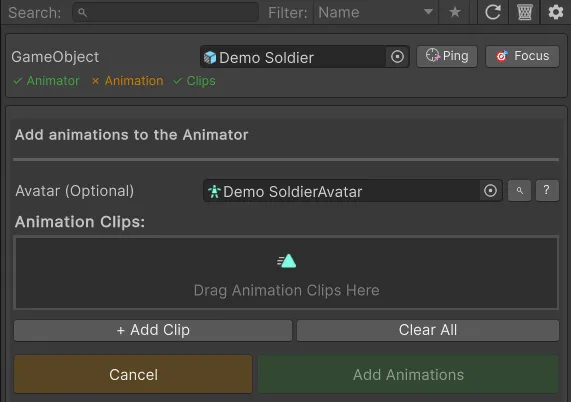
Add Animations
Section titled “Add Animations”Open the wizard to add more animations to the target object.
❌ Troubleshooting
Section titled “❌ Troubleshooting”Common issues
Section titled “Common issues”“No animations found”
Cause: no clips assigned or Animator Controller is empty.
Solution:
- Verify clips in Animator Controller.
- For Animation component, confirm clips are loaded.
- Use Refresh to reload.
“Animation not playing”
Cause: incorrect setup or incompatible clips.
Solution:
- Check clip compatibility (Modern vs Legacy).
- Confirm GameObject is active.
- Verify Controller is assigned in Animator.
“Events not appearing”
Cause: animation events are misconfigured.
Solution:
- Check that the clip has events.
- Verify valid function references.
- Refresh the window if they do not update.
- Ensure the clip is not read-only.
Script integration
Section titled “Script integration”using AnimControlHub;
// Open window with AnimatorAnimHubUtilities.OpenAnimationHubFromAnimator(myAnimator);
// Open window with Animation componentAnimHubUtilities.OpenAnimationHubFromAnimation(myAnimation);
// Open empty windowAnimHubUtilities.OpenAnimationHubWindow();🛠️ AnimControlHub utilities (Utility Panel)
Section titled “🛠️ AnimControlHub utilities (Utility Panel)”Anim Control Hub includes an ecosystem of visual tools available directly in the Editor and from the Anim Hub window, and they can be switched via tabs.
Bone Visualizer
Section titled “Bone Visualizer”Enables quick skeleton visualization in Scene view, making it easier to preview deformation in IK animations or inspect large hierarchies.
- Supports Mirror Mode and bone synchronization.
- You can modify size, shape, and color of bones projected in scene.
Orientation Tool
Section titled “Orientation Tool”Adjusts rotation and vertical pivot directly on world grid, extremely useful for root-motion animations.
- Lets you snap to ground (
Place On Surface) centered by fixed base or pivot. - Allows free auto-rotation or auto-facing camera (
Look At Camera).
Height Ruler Tool
Section titled “Height Ruler Tool”A metric or imperial ruler to visualize model dimensions (Meters, Centimeters, Feet, or Inches) and verify that animation scale remains realistic in-game.
- Calculates character bounds automatically (Bounds) or via Renderers/Colliders.
- Includes its own ground plane.
Blend Shapes Tool
Section titled “Blend Shapes Tool”An advanced inspector in the window with sliders to modify, group, and test all different morphs or facial expressions in SkinnedMeshRenderers.
- Supports multi-edit and mirror Blend Shape sync (for example, left and right eye at once).
- Lets you search among hundreds of BlendShapes and import/export profiles via clipboard.
🫂 Support and community
Section titled “🫂 Support and community”If you find bugs or want to suggest improvements:
- Support: soportelatintechnology@gmail.com