
User Guide
An interactive, visual extension to control your excluded files and folders in Visual Studio Code.
🚀 Quick Start
Section titled “🚀 Quick Start”To get started with Exclude Manager and optimize the visibility of your workspace:
1. Exclude items from the Explorer
Section titled “1. Exclude items from the Explorer”You can hide any file or directory directly from the native VS Code File Explorer.
-
Right-click on the file or folder you wish to exclude in the Explorer.
-
Select the option 🗃️ Exclude with Exclude Manager… (or 🗃️ Excluir con Exclude Manager… if your editor is configured in Spanish).
-
A quick pick window (QuickPick) will open with smart pattern variants suggested automatically:
- The specific selected file.
- All files with the same extension (
*.ext). - The entire parent folder.
-
Select one or more desired options and press Enter. The chosen patterns will be saved and hidden immediately.
⚙️ Features & Management
Section titled “⚙️ Features & Management”2. Interactive Checkboxes
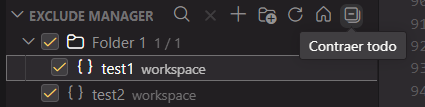
Section titled “2. Interactive Checkboxes”In the Exclude Manager sidebar panel, each pattern includes a checkbox to toggle its state:
- Enabled (Checked): The pattern is set to
truein yourfiles.excludeconfiguration, hiding matching items from the explorer. - Disabled (Unchecked): The pattern changes to
falsein yoursettings.json, making the file or folder visible again while keeping it in your panel list so you can re-enable it whenever needed.
3. Virtual Groups (Folders)
Section titled “3. Virtual Groups (Folders)”Organize your exclusion patterns into custom virtual folders. This allows you to toggle entire sets of exclusions with a single click.
-
Click the new folder button (
+📁Create Group) in the panel toolbar. -
Enter a name for your new group and press Enter.

-
To add patterns to a group, right-click any pattern in the list and select Move to Group…, then choose the destination group.
-
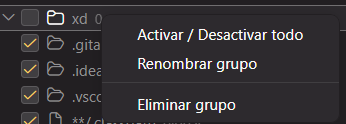
You can manage your groups by right-clicking on them:
- Toggle entire group: Check or uncheck the group checkbox to affect all of its items.
- Rename group: Change the virtual folder name at any time.
- Delete group: When deleting a group, you can choose between keeping the patterns (they will move to the root) or deleting them as well.

4. Pin / Unpin Patterns
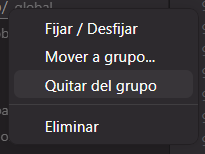
Section titled “4. Pin / Unpin Patterns”Pin your most frequent exclusions to always keep them at the top of the list:
- Right-click on any exclusion pattern.
- Select Pin / Unpin.
- Pinned items will move to the top of the view with a distinct pin icon.
5. Real-Time Search (Live Search)
Section titled “5. Real-Time Search (Live Search)”Find any pattern in seconds across extensive lists:
- Click the search icon (
🔍) in the panel header. - Type the pattern name or substring; the tree will filter in real time.
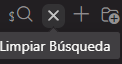
- To clear the filter and display the full list again, click the clear button (
×) or press Esc.

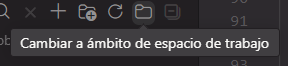
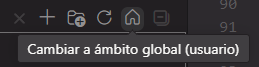
6. Scope Switching (Global and Workspace)
Section titled “6. Scope Switching (Global and Workspace)”Manage your user global exclusions and project local exclusions completely independently:
- Global Scope (User): Applies patterns that will be hidden across all projects opened in VS Code.
- Workspace Scope (Local): Applies patterns exclusive to the currently opened repository or workspace folder (
.vscode/settings.json).
7. Empty State Hints
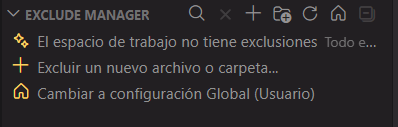
Section titled “7. Empty State Hints”When a scope does not have exclusion patterns configured yet, the panel displays handy contextual shortcuts to add new patterns or switch scopes quickly.
8. Collapse All
Section titled “8. Collapse All”If you have multiple groups and patterns expanded, click the Collapse All button in the top toolbar to fold all virtual folders at once and keep a clean workspace.

⚙️ Configuration & Synchronization
Section titled “⚙️ Configuration & Synchronization”Exclude Manager directly reads and writes to native VS Code settings without requiring proprietary databases or external dependencies:
| Setting | Type | Description |
|---|---|---|
files.exclude | object | Standard VS Code glob pattern map managed visually by Exclude Manager. |
🌎 Bilingual Support & Requirements
Section titled “🌎 Bilingual Support & Requirements”- Supported Languages: English (🇺🇸) and Spanish (🇪🇸), automatically adapting to your VS Code display language.
- Requirements: VS Code
^1.125.0or higher.