
User Guide
Organize your Unity Editor menus, commands, and assets into custom collections and smart palettes.
What is Menu Organizer Pro?
Section titled “What is Menu Organizer Pro?”Menu Organizer Pro is a productivity suite for the Unity Editor that combines:
- A main action organizer (profiles and collections).
- Three fast windows for execution and creation: Command Palette, Hierarchy+, and Project+.
- A floating launcher to jump between tools in seconds.
It is built with UI Toolkit, adds no external dependencies, and runs editor-only.
Suite Tools
Section titled “Suite Tools”You can open them from Tools > Latin Tools or use the launcher with Ctrl+Shift+M (Cmd+Shift+M on macOS).
-
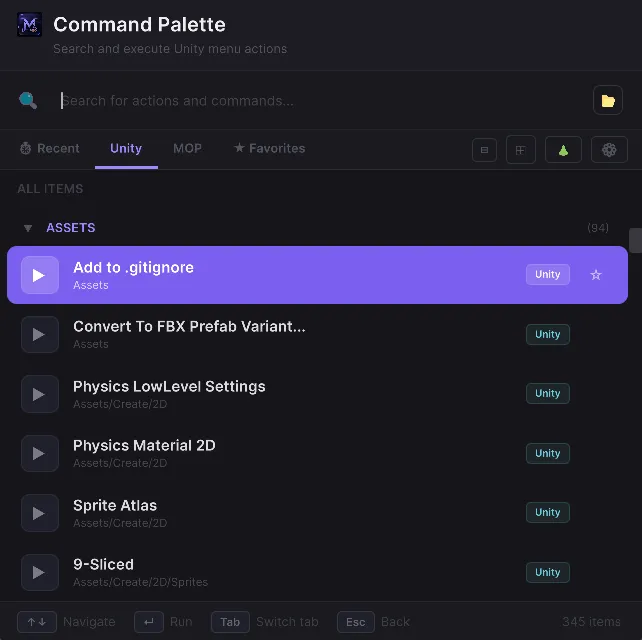
✦ Command Palette: search and run Unity menu actions and custom MOP actions.
-
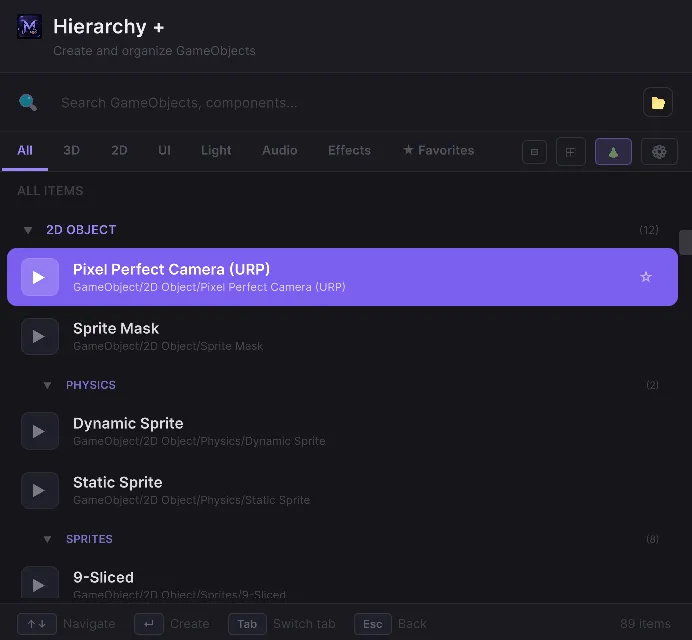
🏗 Hierarchy+: create GameObjects by categories (3D, 2D, UI, Light, Audio, Effects).
-
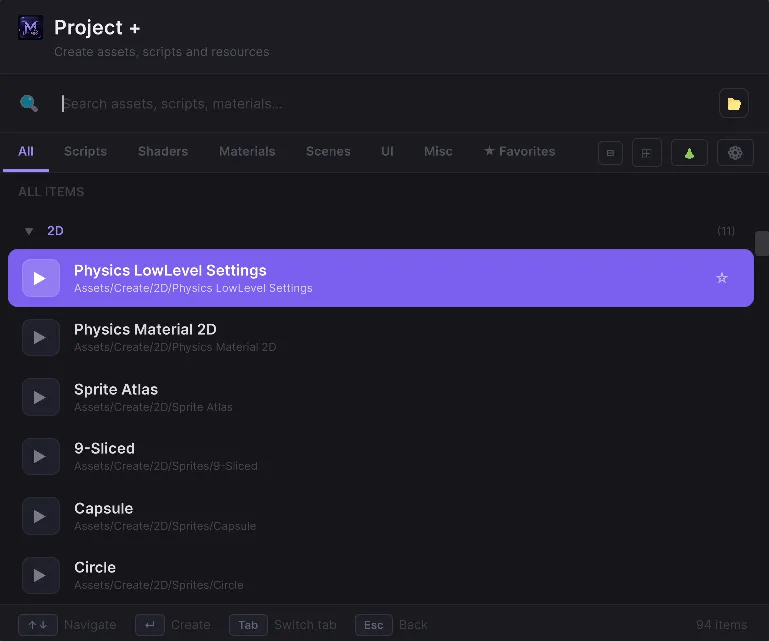
📁 Project+: quickly create assets by categories (Scripts, Shaders, Materials, Scenes, UI, Misc).
-
⚙️ Unity Toolbar: quickly access MOP tools from the editor’s main toolbar.

-
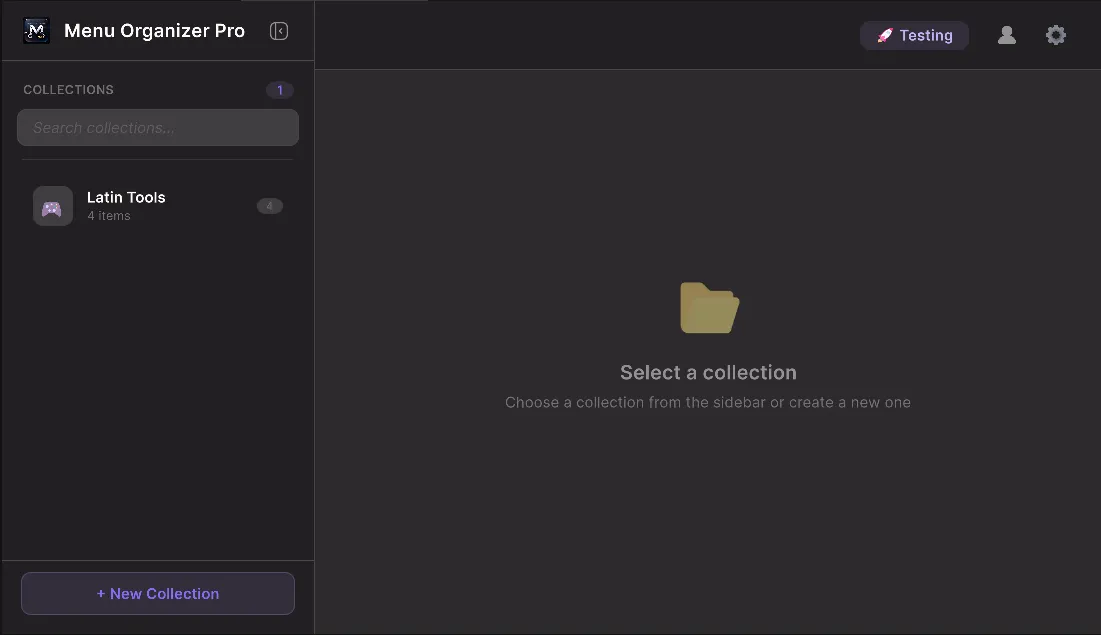
☰ Menu Organizer Pro: organize your actions into custom profiles and collections.
-
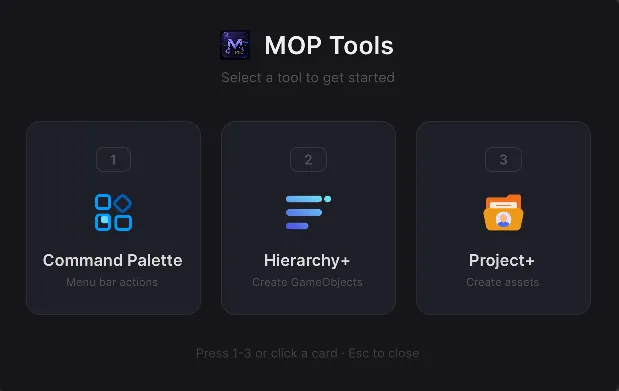
🚀 MOP Tools Launcher: quick hub to open Command Palette, Hierarchy+, and Project+.
Quick Start
Section titled “Quick Start”-
Open Tools -> Latin Tools -> ✦ MOP Tools and launch a fast tool, or go directly to ☰ Menu Organizer Pro.
-
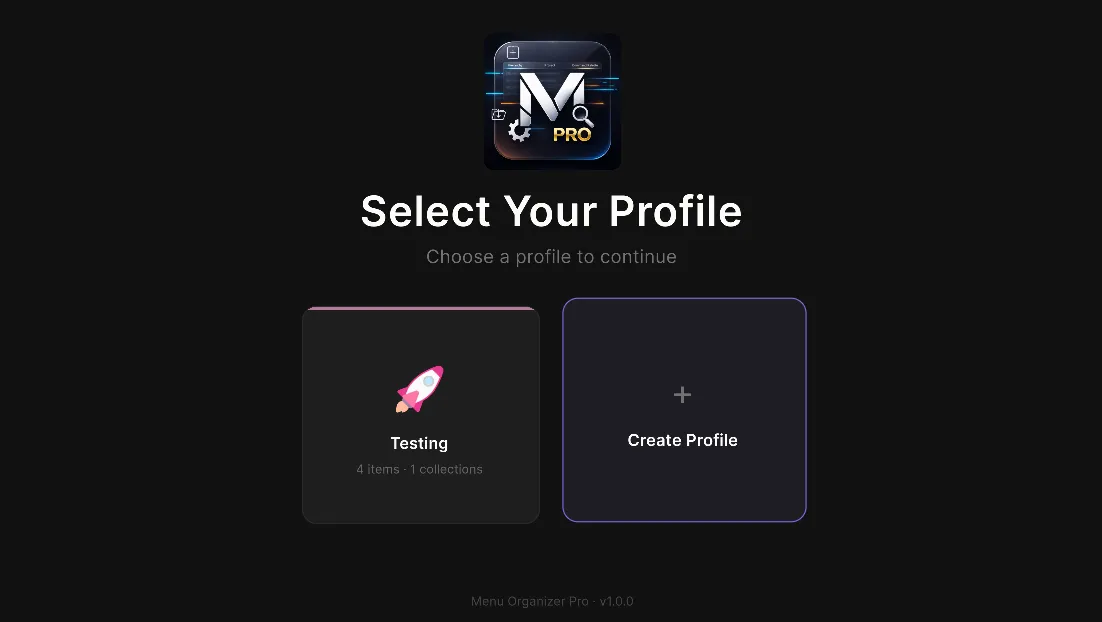
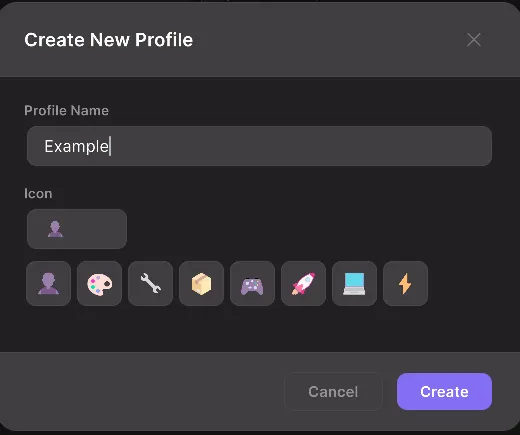
In the organizer, create a profile with Create Profile.
-
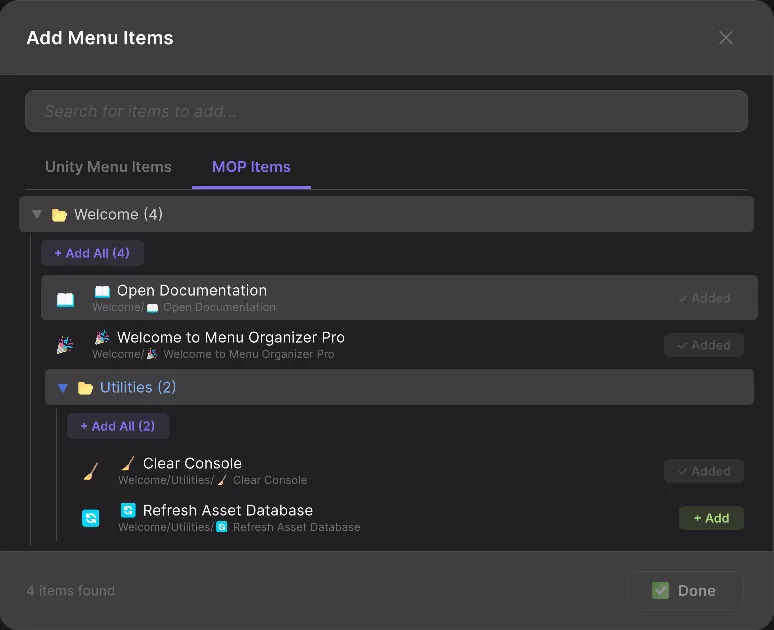
Create a collection with + New Collection.
-
Add actions with + Add.
-
Run actions with ▶ Run or use Command Palette to invoke them instantly.
MOP Tools Launcher
Section titled “MOP Tools Launcher”The launcher is a centered floating window that opens:
1Command Palette2Hierarchy+3Project+
It also supports:
- Left/right arrow to switch selection
- Enter to open the selected card
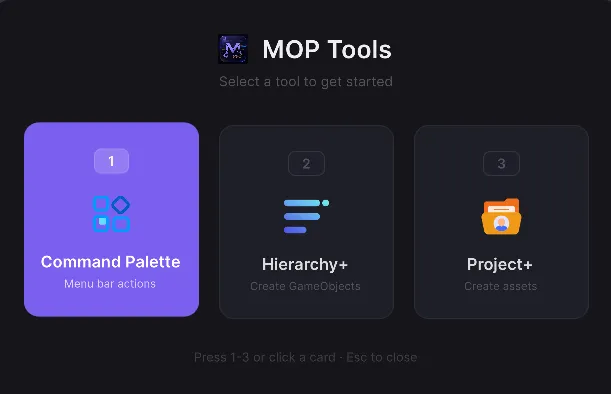
- Escape to close
Global shortcut from menu: Tools -> Latin Tools -> ✦ MOP Tools (Ctrl+Shift+M).
Command Palette
Section titled “Command Palette”
- Recent
- Unity
- MOP
- Favorites
What you can do
Section titled “What you can do”- Search by name or path with relevance ranking.
- Toggle parent category search mode.
- Collapse/expand groups and enable deep tree for subcategories.
- Mark/unmark favorites (
☆/★). - Remove recent items (
✕) while on the Recent tab.
Keyboard shortcuts
Section titled “Keyboard shortcuts”- Up/down arrow: move selection
- Enter: run action
- Tab: cycle visible tabs
- Escape:
- If there is search text, clear the field
- If there is no text, close and return to launcher
Preferences
Section titled “Preferences”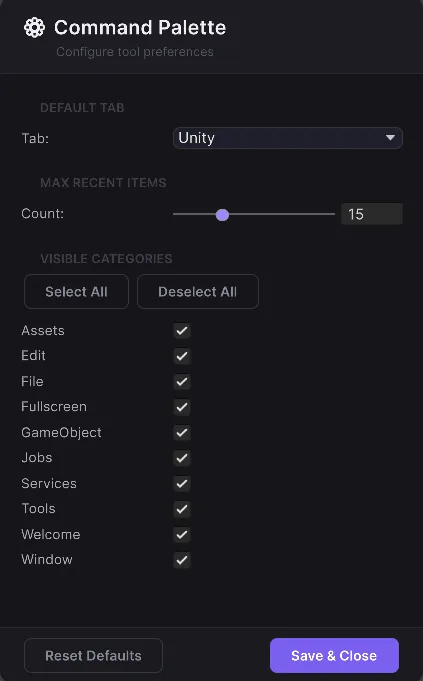
From the preferences button you can define:
- Default tab
- Maximum recents
- Visible categories
Hierarchy+
Section titled “Hierarchy+”Window focused on fast GameObject creation (GameObject/...) with category filters.

- Recent
- All
- 3D
- 2D
- UI
- Light
- Audio
- Effects
- Favorites
Key features
Section titled “Key features”- Relevance and parent-category search.
- Collapsible groups and optional deep view.
- Persistent favorites and recents.
- Full keyboard navigation.
Project+
Section titled “Project+”Window focused on fast asset creation inside the Assets/... domain.

- Recent
- All
- Scripts
- Shaders
- Materials
- Scenes
- UI
- Misc
- Favorites
Key features
Section titled “Key features”- Fast creation of common assets (scripts, materials, shaders, scenes, and more).
- Same search, favorites, and recents system as Hierarchy+.
- Independent preferences per tool.
Unity Toolbar
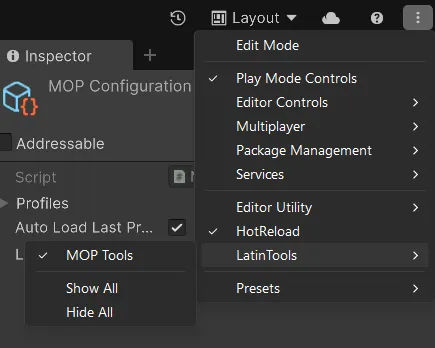
Section titled “Unity Toolbar”This feature adds buttons to the editor main toolbar for quick tool access.
To enable this feature, follow this path:
-
Click the three-dot icon (top-right corner).
-
Navigate to Latin Tools.
-
Select ✦ MOP Tools.
Menu Organizer (Profiles and Collections)
Section titled “Menu Organizer (Profiles and Collections)”The main organizer lets you build your custom action system.
Profiles
Section titled “Profiles”A profile represents a work context (for example: Level Design, Art Pipeline, or Debug).
Collections
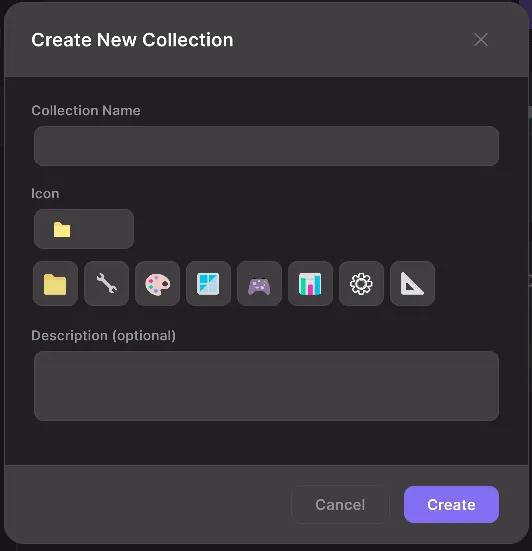
Section titled “Collections”Each collection groups related actions.
| Property | Description |
|---|---|
| Name | Name shown in sidebar |
| Icon | Group emoji |
| Description | You can add an optional description |
Custom actions with [MOPMenuItem]
Section titled “Custom actions with [MOPMenuItem]”This feature lets you extend the suite with your own custom actions, seamlessly integrating them into Command Palette and helping keep your Unity editor cleaner and better organized.
using LatinTools.MenuOrganizerPro;
public static class MyTools{ [MOPMenuItem("My Tools/Clear Console", Icon = "🧹", Priority = 1)] public static void ClearConsole() { // your logic }}MenuPath: hierarchical path using/Icon: emoji or symbol for UIDescription: optional descriptionPriority: order (lower value, higher priority)
Preferences Per Tool
Section titled “Preferences Per Tool”Command Palette, Hierarchy+, and Project+ share a preferences window where you can configure:
- Default tab when opening
- Maximum recent items
- Visible categories (show/hide)
This lets you adapt each window to the type of work you do every day.
Data Storage
Section titled “Data Storage”Data is saved as ScriptableObjects in:
Assets/LatinTools/MenuOrganizerPro/Resources/├── MOPConfiguration.asset├── Profiles/└── Collections/