
User Guide
An all-in-one extension that helps you organize and launch your Unity projects without taking your hands off the keyboard.
🚀 Open the Extension
Section titled “🚀 Open the Extension”To start organizing and managing your projects installed in Unity Hub:
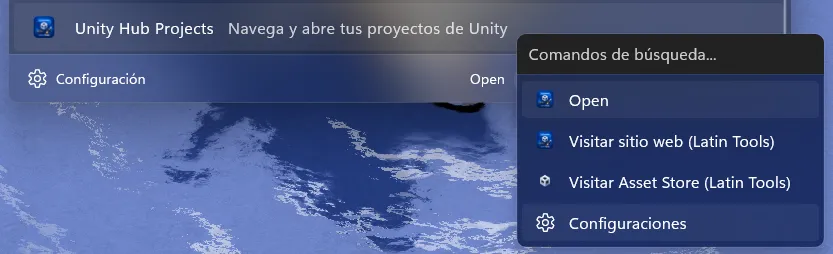
From Microsoft PowerToys Command Palette
Section titled “From Microsoft PowerToys Command Palette”Open the extension from anywhere in your system by launching the PowerToys command bar.
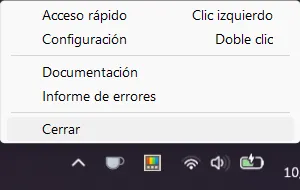
Suggested shortcut: Win + Alt + Space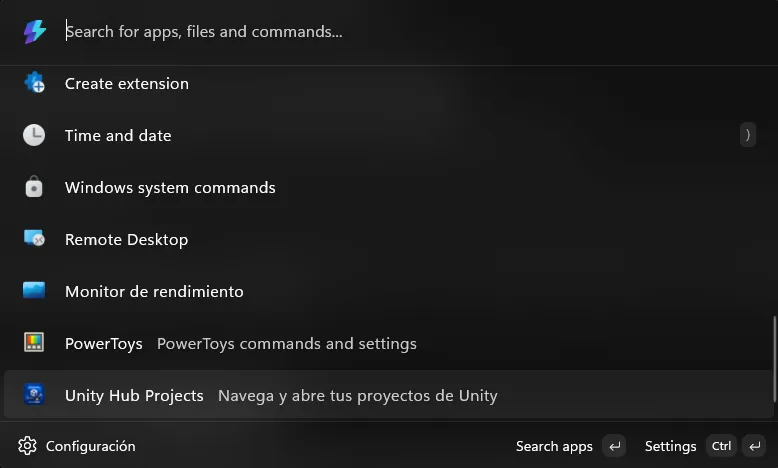
🔍 Search and Navigation
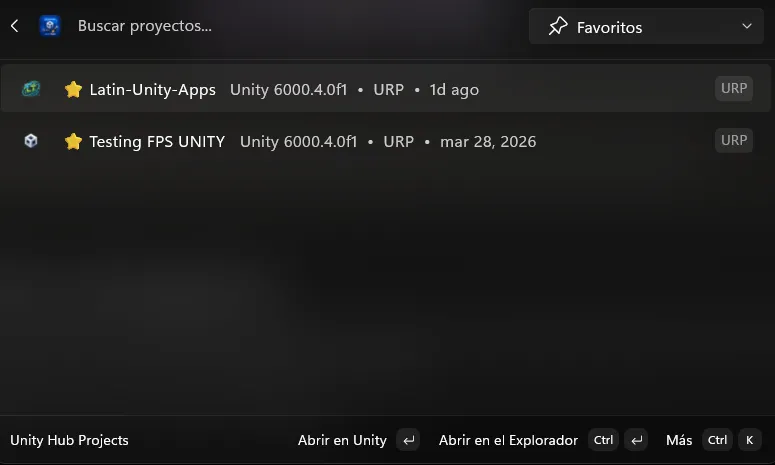
Section titled “🔍 Search and Navigation”The search experience is immediate: as you type your project name, Unity Hub Extension filters results in real time with an efficient and modern interaction flow.
-
Open Command Palette using your configured shortcut.
-
Type your project name (e.g. “My 2D Game”).
-
Move through results with the arrow keys.
-
Press Enter to launch Unity with the version associated with that project.
⚙️ Settings and Preferences
Section titled “⚙️ Settings and Preferences”Inside the extension, you have several configurable options that improve your workflow instantly without requiring restarts.
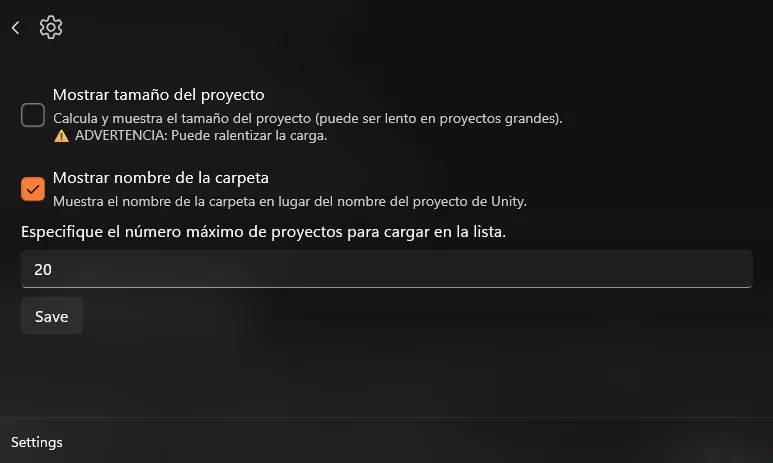
- Calculate project size: An important addition. This option recursively scans your project directory and shows the real total size in GB.

-
Show folder name: Lets you display either the project’s root folder name or the project name defined inside Unity.
-
Number of projects to display: Limits how many projects are listed to keep the interface clean and focused.
🎮 Individual Commands
Section titled “🎮 Individual Commands”Each project includes a list of direct actions for quick access:
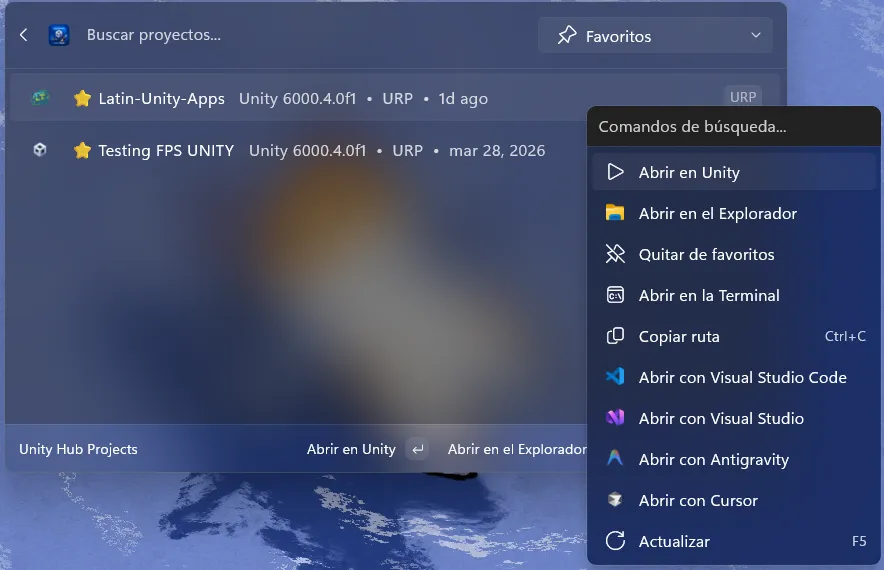
- Open in Unity: Main action. Instantly opens your project in the Unity Editor.
- Open File Explorer: Opens your project root to navigate local files quickly.
- Remove from Favorites: Removes the project from your favorites list to keep the panel clean.
- Open in Terminal: Starts a terminal in your local project directory for version control and command workflows.
- Copy Path (
Ctrl + C): Copies the full project path to your clipboard. - Open with Visual Studio Code: Opens your project directly in VS Code.
- Open with Visual Studio: Opens the project/solution in Visual Studio, ideal for .NET and C# workflows.
- Open with Antigravity: Launches the project using Antigravity when available in your environment.
- Open with Cursor: Opens the project in Cursor for AI-assisted editing.
- Refresh (
F5): Reloads the project list and updates current status.