
Known Issues
Solutions to common problems with Unity Hub Extension.
The extension doesn’t appear or doesn’t open the app
Section titled “The extension doesn’t appear or doesn’t open the app”If you are trying to use the extension from the PowerToys Command Palette and it doesn’t appear or won’t open, try the following possible solutions:
Solution 1: Activate directly
Section titled “Solution 1: Activate directly”- Go to Windows Search, type “Unity Hub Extension for PowerToys”, and click on it.
- This will activate the extension in PowerToys. Please note that the PowerToys application must be running in the background.
Solution 2: Reload from PowerToys
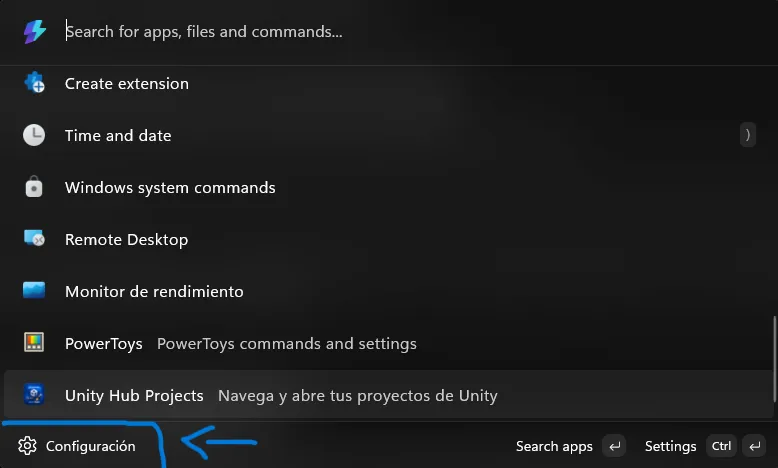
Section titled “Solution 2: Reload from PowerToys”It is possible that the extension is deactivated. To fix this, you must open the PowerToys command palette and ensure the extension is enabled:
-
Open the PowerToys command palette using the shortcut Win + Alt + Space.
-
In the left options menu, select Extensions and then go to the Installed tab.
-
Look for the extension and click Activate, or click the Reload extensions button.
