User Guide
A visual and comprehensive extension to control your excluded files and directories in Visual Studio Code.
🚀 Quick Start
Section titled “🚀 Quick Start”To start using the extension and keep your workspace tidy:
1. Exclude items from the Explorer
Section titled “1. Exclude items from the Explorer”You can hide any file or folder directly by right-clicking from the native VS Code Explorer.
-
Right-click on a file or directory that you want to hide.
-
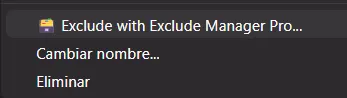
Select the option 🗃️ Exclude with Exclude Manager Pro… (or 🗃️ Excluir con Exclude Manager Pro… if your editor is in Spanish).
-
A QuickPick window will open suggesting smart variants of the exclusion pattern (e.g., exact file, all files with that extension, or the entire parent folder). Select one or more variants and press Enter.
-
The selected patterns will be automatically saved and hidden from your workspace.
⚙️ Features & Management
Section titled “⚙️ Features & Management”2. Interactive Checkboxes
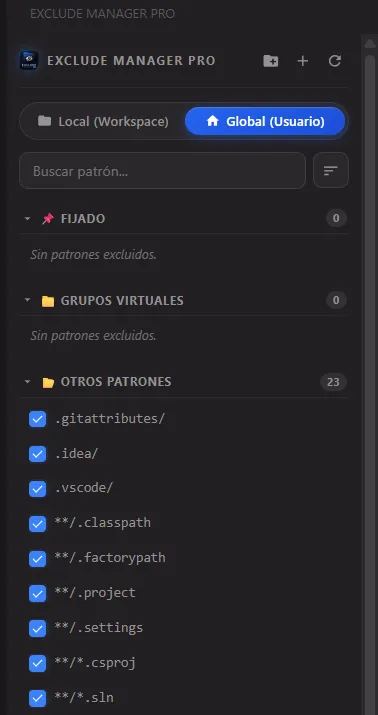
Section titled “2. Interactive Checkboxes”In the Exclude Manager Pro sidebar, each pattern has a checkbox to its left:
- Enabled (Checked): The pattern is written to your
settings.jsonfile astrue, hiding it from the explorer. - Disabled (Unchecked): The pattern value changes to
falsein yoursettings.json, making it visible immediately while remaining stored in the list so you can hide it again whenever you want.
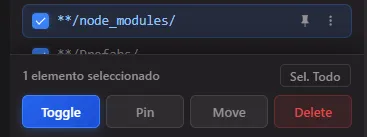
- Multi-Selection (Shift + Click): You can select multiple patterns simultaneously by clicking one pattern and then holding
Shiftwhile clicking another. This selects the entire range and displays a quick actions bar at the bottom (with options such as Toggle, Pin, Move, and Delete) indicating the number of selected items.
3. Virtual Groups (Folders)
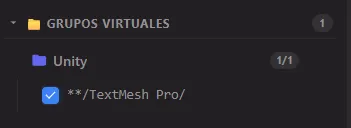
Section titled “3. Virtual Groups (Folders)”You can group multiple patterns under custom virtual folders to organize your workspace and toggle sets of exclusions in bulk.
-
Click the folder icon with a plus symbol (Create Group) at the top of the sidebar panel.
-
Type the name for your new group.

-
Right-click on any exclusion pattern in your list and select Move to Group…, then choose the target group.

-
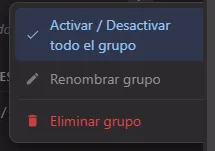
You can collapse or expand the group folder, as well as check the entire group checkbox to toggle all its members at once.
4. Pin Patterns (Pin)
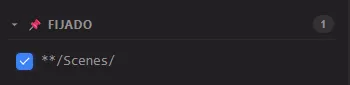
Section titled “4. Pin Patterns (Pin)”If you have frequently used patterns, you can right-click them and select Pin / Unpin. This moves the pattern to the top pinned section of the tree view (outside of any group), marking it with an orange pin icon to keep it always accessible.
5. Filter with the Search Bar
Section titled “5. Filter with the Search Bar”You can quickly search and filter your patterns:
-
Click the magnifying glass button (Search) in the Sidebar title.
-
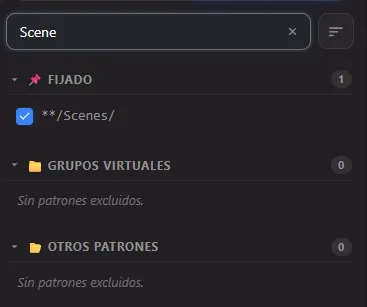
Type your query to filter the visual pattern tree in real time.
-
To the right of the Search button in the header, a close button (x) will be enabled. Clicking it clears the search query instantly and restores the full list.
Sort Patterns
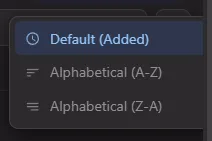
Section titled “Sort Patterns”In addition to searching, you can sort your patterns by clicking the sort button to the right of the search bar. You will have options to sort by the order they were added (Default (Added)), alphabetically from A to Z (Alphabetical (A-Z)), or from Z to A (Alphabetical (Z-A)).
6. Scope Switching (Global and Workspace)
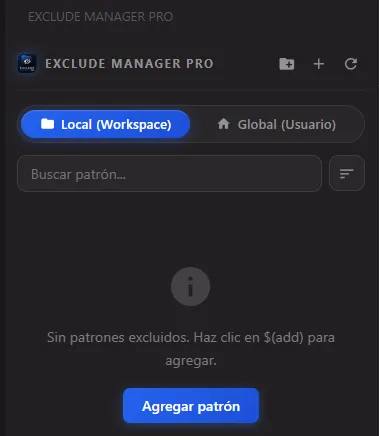
Section titled “6. Scope Switching (Global and Workspace)”In the upper right corner of the view title bar (next to refresh), you will see the Workspace Scope (folder) and Global Scope (home) icons:
- Clicking the Global Scope icon (home) displays and modifies only global exclusions in your VS Code user settings (
Global Settings). - Clicking the Workspace Scope icon (folder) filters and manages only the local exclusions of the current project (
.vscode/settings.json).